
Imagine spilling your morning coffee on your beloved mechanical keyboard during an intense work session—sticky keys, muffled clicks, and potential damage looming. Don’t panic; with the right approach, you can restore it to pristine condition. Mechanical keyboards, known for their durable switches like Cherry MX or Gateron, are popular among gamers, typists, and programmers for their tactile feedback and longevity. However, they attract dust, crumbs, and grime more easily than membrane keyboards due to their open design. In this comprehensive guide, we’ll cover how to clean a mechanical keyboard safely at home, using simple tools to maintain its performance and extend its life. Whether you’re dealing with everyday buildup or a spill, regular cleaning can prevent issues like key sticking and improve your typing experience.
Why You Should Clean Your Mechanical Keyboard Regularly
Neglecting your keyboard can lead to more than just aesthetic problems. Dust and debris accumulate between switches, causing delayed responses or muted clicks that frustrate gamers and reduce productivity for typists. Spills can corrode components if not addressed promptly. From a hygiene perspective, keyboards are notorious germ hotspots. Research from the University of Arizona found that the average desktop harbors 400 times more bacteria than a toilet seat. This includes bacteria from skin oils, food particles, and environmental dust, potentially leading to health issues like allergies or infections.
For heavy users, such as programmers relying on precise keystrokes or gamers needing quick actuation, dirt impacts performance directly. Custom mechanical keyboard enthusiasts know that uncleaned switches lose their smooth feel over time. Aim to surface-clean weekly and perform a deep clean monthly. This not only preserves the keyboard’s responsiveness but also protects investments in premium features like RGB lighting or hot-swappable switches.
Tools and Materials You’ll Need
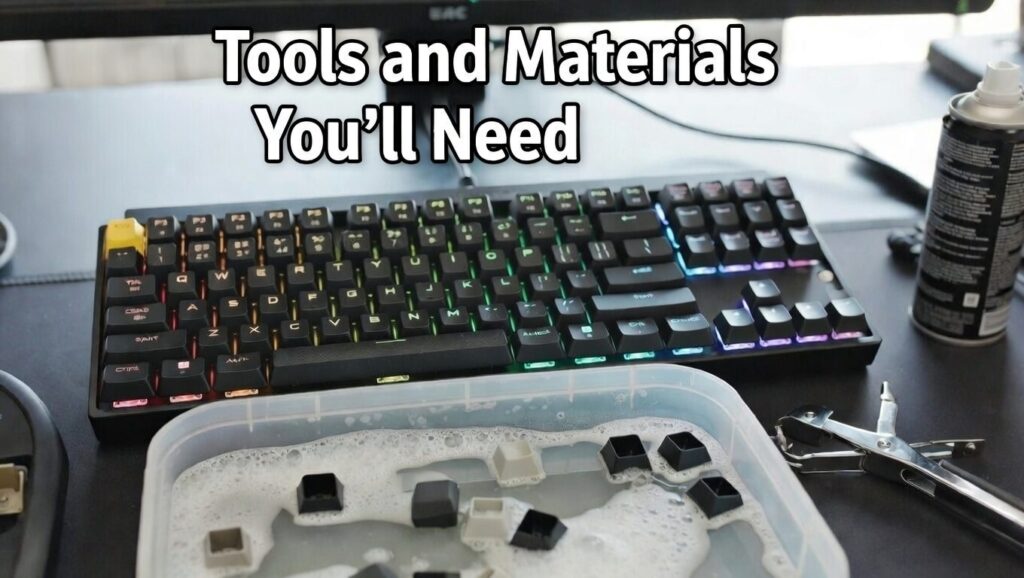
Gather these items before starting—most are inexpensive and available at electronics stores or online. Basic kit:
- Compressed air canister (for blowing out dust)
- Soft-bristle brush (like a makeup brush or anti-static brush)
- Microfiber cloth (lint-free for wiping)
- Isopropyl alcohol (70-90% concentration; avoids water damage)
- Keycap puller (wire or plastic tool; often included with keyboards)
- Cotton swabs (for precise cleaning)
- Distilled water (optional for diluting alcohol)
Optional extras include a switch puller for hot-swappable keyboards, a small vacuum with brush attachment, and a plastic container for soaking keycaps. Budget: Under $20 for essentials. Avoid harsh cleaners like bleach or ammonia, as they can damage plastics or electronics. If you’re ESD-sensitive, use anti-static gloves.
Preparation Before Cleaning
Safety first: Unplug your keyboard from your computer and turn it off if it’s wireless (remove batteries). This prevents electrical shorts or accidental inputs. Next, remove the keycaps using your puller—gently hook under two opposite sides and pull straight up to avoid bending stems. For stabilizers on larger keys like spacebar, be extra careful.
Take a photo of your layout for easy reassembly, especially on non-standard setups like 60% or 75% keyboards. Work on a clean, flat surface covered with a towel to catch debris. If dealing with a recent spill, invert the keyboard immediately to drain liquids and let it air dry for at least 24 hours before proceeding.
Step-by-Step Guide to Cleaning Your Mechanical Keyboard
Follow these steps meticulously for best results. This process takes 30-60 minutes, plus drying time.
Step 1: Surface Dust Removal
Shake the keyboard upside down over a trash bin to dislodge loose crumbs. Use compressed air in short bursts to blow out dust from between switches—hold the canister upright to avoid propellant residue. Angle it at 45 degrees and move systematically across the board. Follow up with a soft-bristle brush to sweep away stubborn particles. Avoid touching switches directly to prevent static discharge.
Step 2: Cleaning Keycaps
Fill a container with warm soapy water (mild dish soap) or a 1:1 mix of distilled water and isopropyl alcohol. Soak keycaps for 10-15 minutes. Scrub each with a microfiber cloth or soft toothbrush, focusing on textured areas. Rinse under running water if using soap, then pat dry with a cloth and air dry completely (4-6 hours). For ABS keycaps, avoid hot water to prevent warping; PBT keycaps are more durable. This step restores shine and removes oils.
Step 3: Cleaning the Switches and Plate
Dip a cotton swab in isopropyl alcohol and gently wipe around each switch stem and housing. For hot-swappable keyboards, use a switch puller to remove switches individually—clean pins and housings, then reinsert. Do not apply liquid directly to the PCB (printed circuit board) to avoid corrosion. If your keyboard has RGB lights, clean diffusers with a dry swab to maintain even illumination. For tactile or clicky switches, this restores feedback; linear switches benefit from reduced friction.
Step 4: Cleaning the Case and Base
Wipe the exterior case with a microfiber cloth dampened in alcohol solution. For aluminum or plastic cases, buff gently to remove fingerprints. Clean cable ports and feet if applicable. If the base has foam dampening, remove and dust it separately—avoid wetting acoustics-modifying materials.
Step 5: Reassembly and Testing
Once everything is dry, reattach keycaps by aligning stems and pressing down until they click. For wireless models, reinstall batteries. Plug in and test every key using an online tool like Keyboard Tester. Check RGB functions and listen for consistent switch sounds. If issues persist, repeat targeted cleaning.
Variations: For gaming keyboards with per-key RGB, test lighting post-clean. After spills, use silica gel packets for drying. Custom builds may require lubing switches afterward for optimal feel.
Also Read: How to Test if a Keyboard Key is Working – Complete Guide
Tips and Precautions for Safe Cleaning
Work in a well-ventilated area to avoid inhaling alcohol fumes. Wear gloves if handling oily residues. Let components dry fully—rushing can cause shorts. For eco-friendly options, use reusable cloths and minimal chemicals. If modding your keyboard (e.g., adding foam), clean during disassembly to combine tasks. Pro tip: Label switches if pulling multiple for customs.
Don’t submerge the keyboard, use heat dryers (warps plastics), or vacuum on high (static risk). If unsure about your model, check the manufacturer’s guide—e.g., Razer or Corsair keyboards may have specific advice.
Common Mistakes to Avoid
- Using plain water: It leaves minerals that cause rust; stick to alcohol.
- Forgetting to unplug: Risks damage or shocks.
- Rough switch handling: Bends pins, leading to failures.
- Incomplete drying: Moisture shorts circuits days later.
- Over-scrubbing: Wears legends on keycaps.
If a key sticks post-clean, re-clean the switch or check for debris. Persistent issues? Consider professional repair.
Maintenance and Prevention Strategies
Prevent buildup with daily habits: Use a silicone keyboard cover, avoid eating at your desk, and wash hands before use. Weekly, dust with air. Every 6 months, re-lube switches if you’re an enthusiast for smoother actuation. Signs it’s time to replace: Unresponsive keys despite cleaning or worn switches.
Recommended accessories: Anti-dust covers or cleaning kits from brands like Keychron. These habits can double your keyboard’s lifespan.
Conclusion
Cleaning your mechanical keyboard is straightforward and rewarding, restoring its clicky glory and hygiene. By following this guide, you’ll tackle dust, spills, and grime effectively. Give it a try today—your fingers (and health) will thank you. Share your cleaning tips in the comments!
People Also Ask
What is the best way to clean a mechanical keyboard?
Unplug it, remove keycaps, use compressed air to blow out dust, wipe switches with isopropyl alcohol-dipped swabs, clean keycaps in soapy water, dry thoroughly, and reassemble.
Can I use WD-40 to clean a mechanical keyboard?
No, WD-40 is oily and can attract more dust while damaging switches and electronics; use isopropyl alcohol instead.
How to clean a mechanical keyboard without tools?
Unplug, shake out debris upside down, wipe with a soft cloth dampened in isopropyl alcohol (diluted if needed), and air dry; avoid deep cleans without proper tools.
Will water ruin a mechanical keyboard?
Yes, direct water exposure can cause corrosion, shorts, or rust on switches and the PCB; use only on removable keycaps and dry completely.
Can I use rubbing alcohol to clean my mechanical keyboard?
Yes, 70-90% isopropyl (rubbing) alcohol is safe for wiping switches, keycaps, and the case when used sparingly and allowed to evaporate fully.
Can I use water to clean a mechanical keyboard?
Avoid direct water on the keyboard itself as it risks damage; use warm soapy water only for soaking removable keycaps, then rinse and dry them thoroughly.
Is Dawn dish soap safe for keycaps?
Yes, diluted Dawn dish soap is mild and safe for cleaning plastic keycaps; soak, scrub gently, rinse well, and air dry to avoid residue.